To allow your users to make small adjustments to the font in the slides, you must allow this in the layout template.
Fontsize
In the Layout Template click on the settings for the desired area.
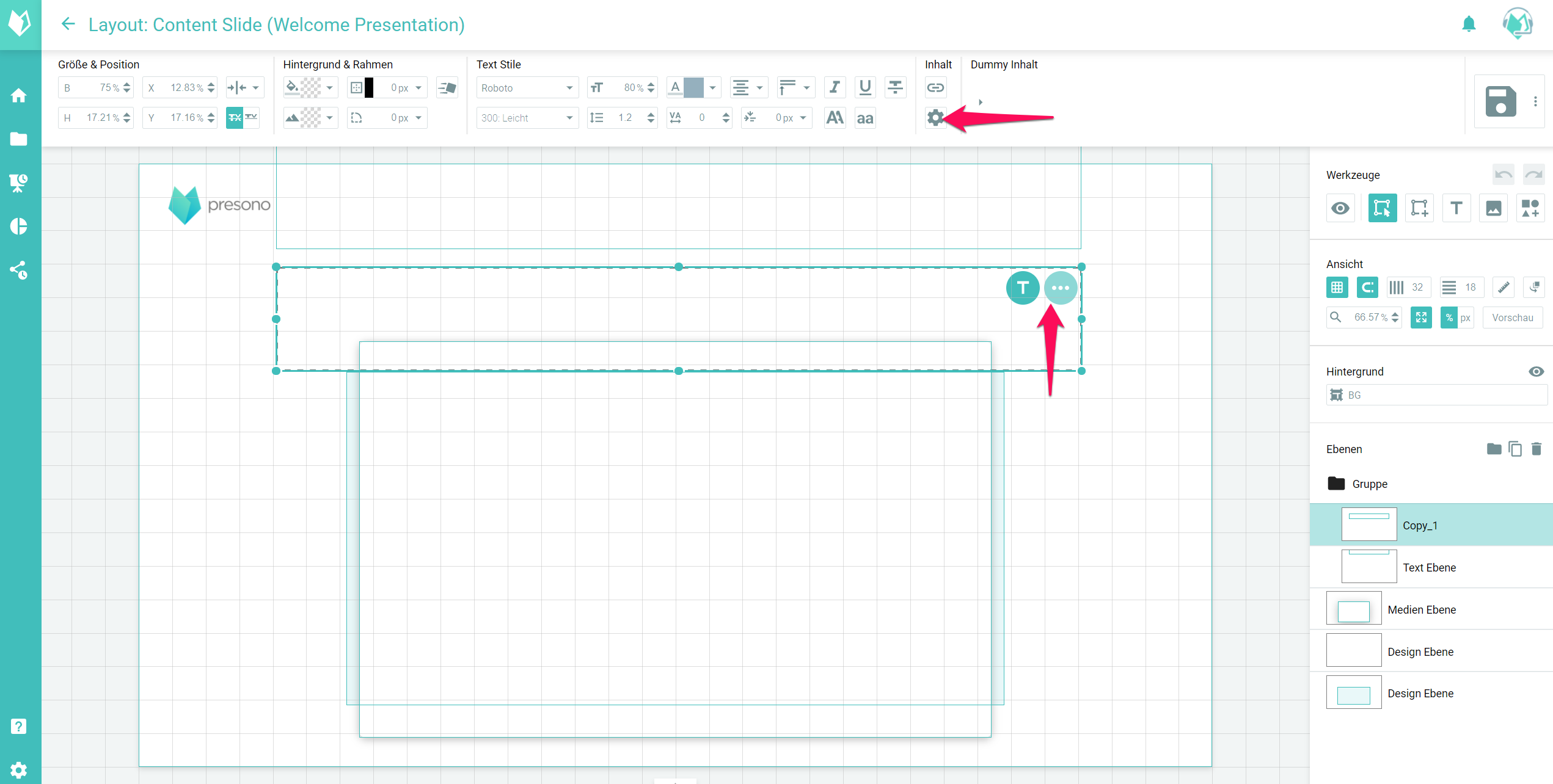
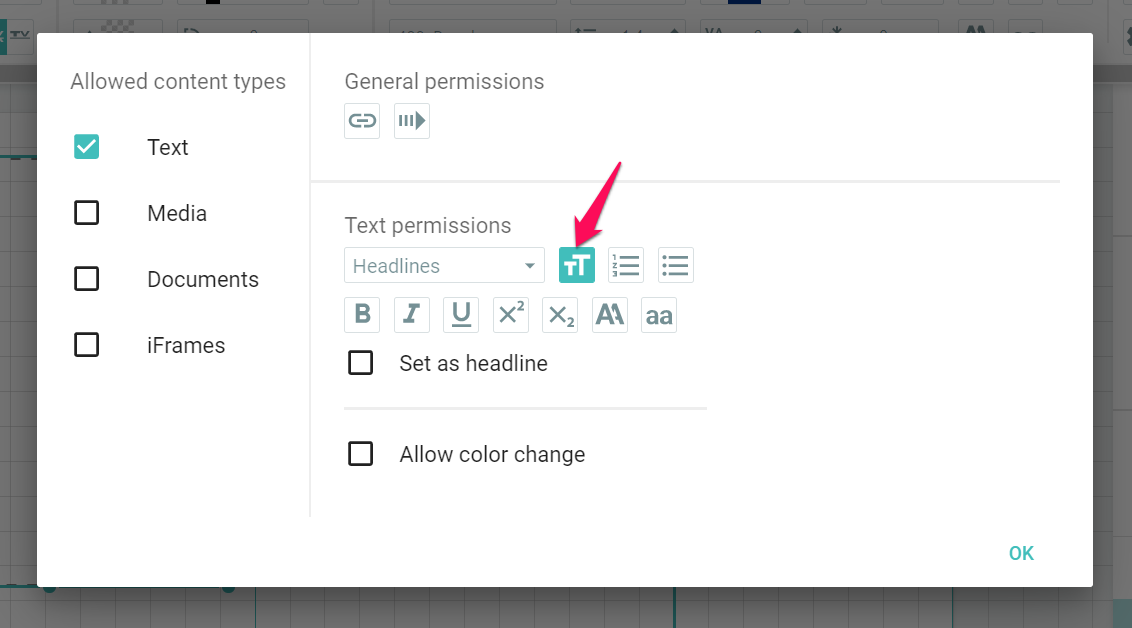
To allow changing the font size in the slide, select the following option:
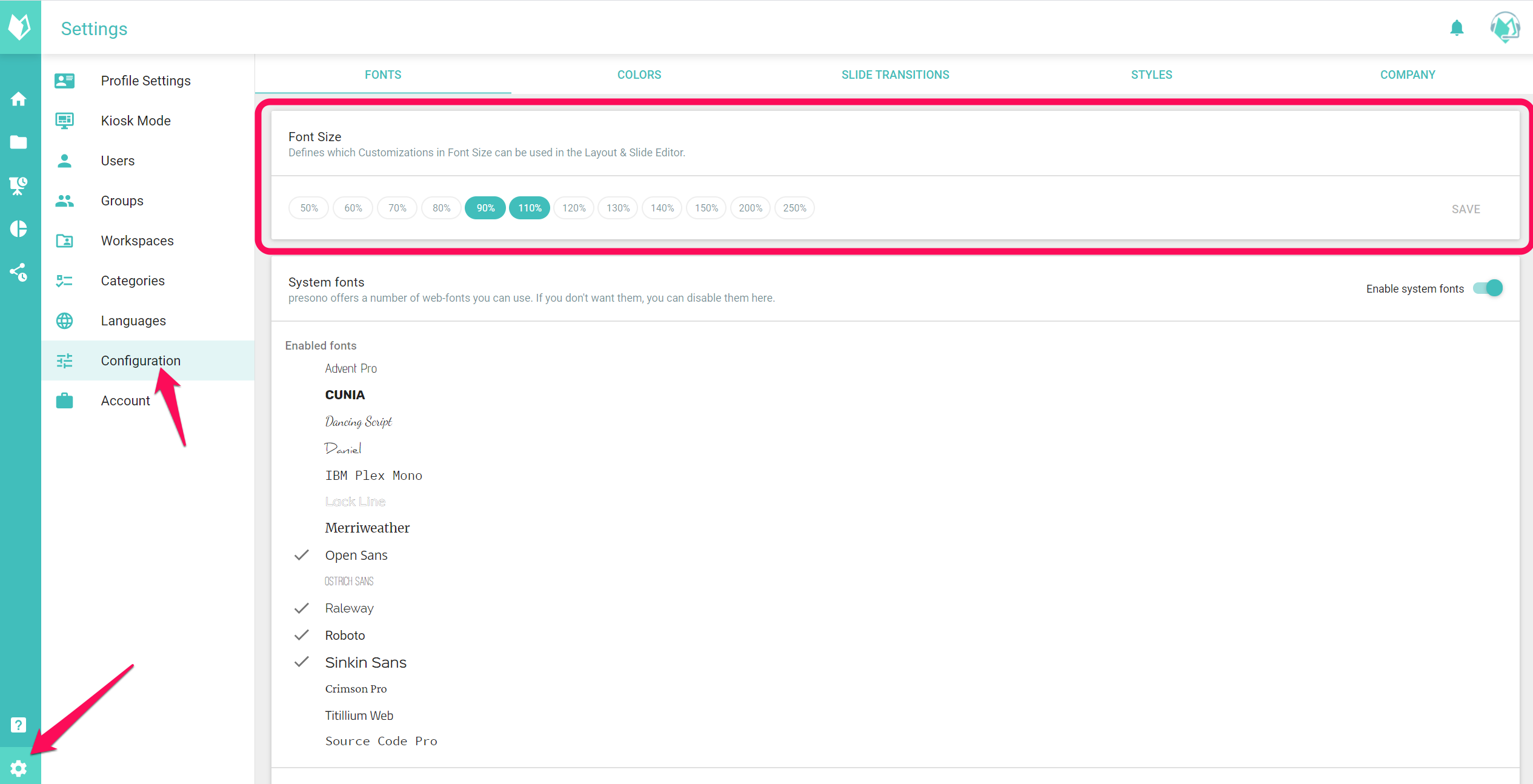
The font sizes that can ultimately be selected are fixed in the global settings under configurations (by an admin).
Fontcolor
When changing the color, the text in the slide can either be changed to any color, only predefined colors can be used or individually defined colors are possible. This setting is especially important if the color of the text depends on which image is inserted behind that area.
Click in the Layout Template on the settings for the desired area.
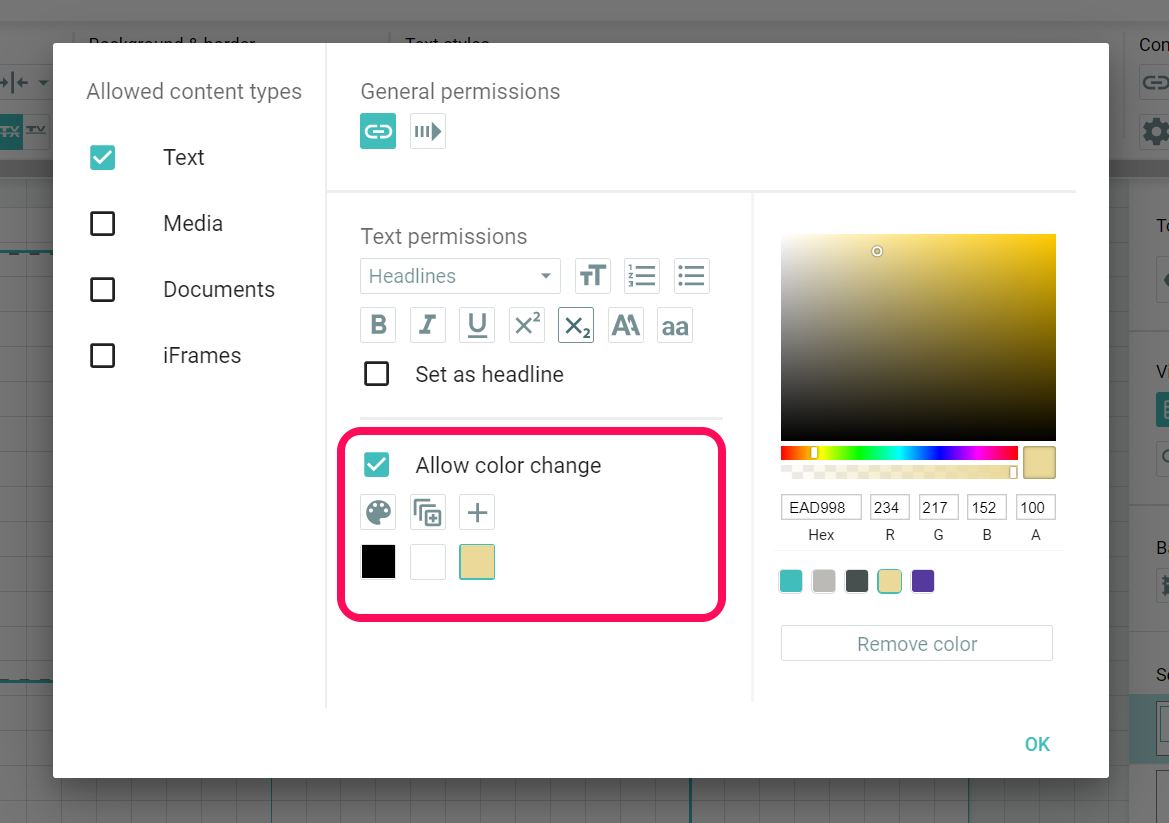
In order to allow the color change in this area, the check mark at "Allow color change" must be set first.
Then, any number of colors can be added. There are three options:
1.This option allows the user to choose any color they like in the slide. The whole palette will appear in the slide.
2. Predefined colors can also be provided. These are colors, which are fixed in the settings under configurations. They can be added by clicking on this button (2). However, individual colors can then be deleted again by first selecting the color and then "Remove color" on the right.
3. This option adds a new, individual color. The palette appears on the right and you can define a color. This color will then appear in the slide. This process can be repeated as often as you want. If you want to change or delete a color, click on the respective color.